User Inputs
The user input area is marked in Figure 1 by the blue rectangle. The user inputs the molecules for which the ADMET properties are to be predicted. This can be done either one molecule at a time, with a single SMILES string for the intended molecule entered in the “Enter a SMILES string” field (Figure 1, “1”), or as a “.csv” file containing the SMILES strings for a set of molecules in a single column via the “Browse” button (Figure 1, “2”). The “Download Sample” option (Figure 1, “3”) provides an example of the input file. Once an input “.csv” file is selected, the column containing the SMILES strings can be specified by the user in the “SMILES column header” field (Figure 1, “4”). This enables the use of input files with multiple columns of data if desired.
Upon selecting the column of SMILES strings, a preview of the first 5 rows of the column is provided (Figure 1, “5”) as a quick check for whether the correct column has been selected. Descriptive tags can be entered for the job (Figure 1, “6”) for easy identification of the job in the jobs list (see below). Note: The user needs to hit “enter” for the job tags to be applied. The job is submitted via the “submit” button (Figure 1, “7”)
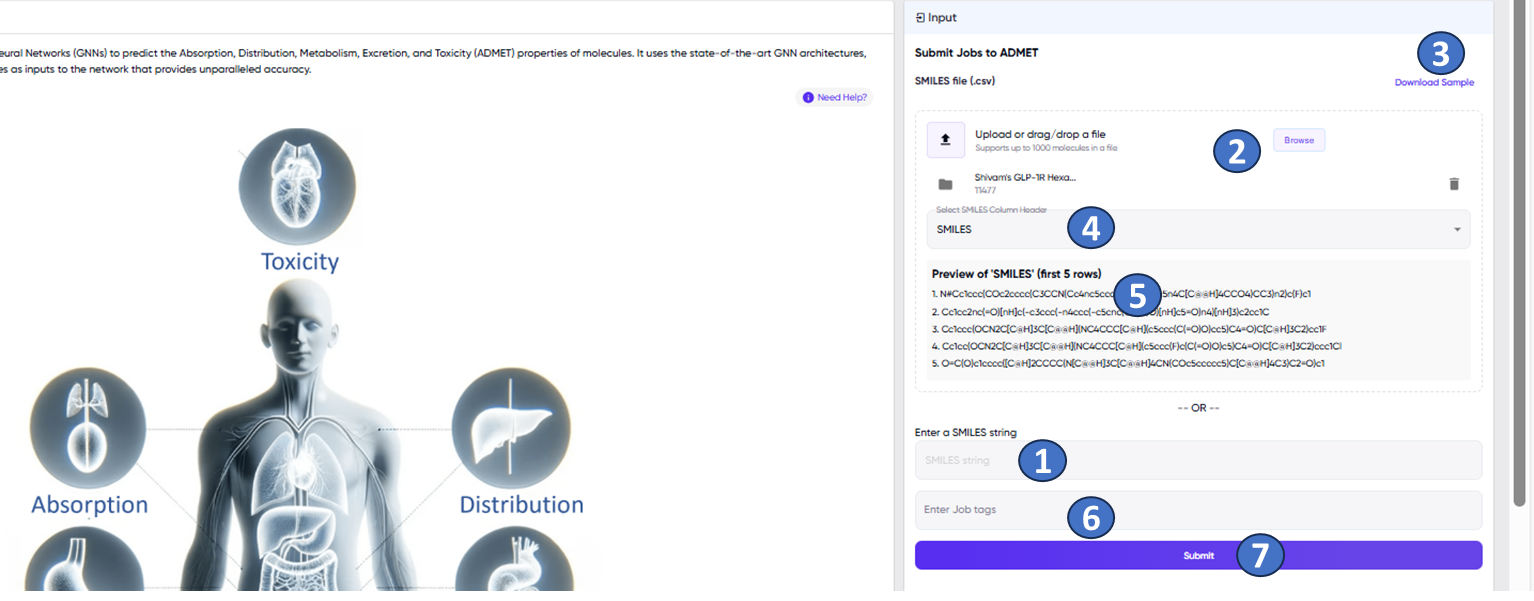
Figure 1: The ADMET Pro screen with the user input panel to the right. The various fields and functions marked in the figure are described in the text above.